2014年12月7日 星期日

Git note

Git指令教學(reset)
  • 檔案改爛了怎麼辦 
         -commit之前改爛了,恢復到修改前
           a. git checkout [file_name]
           b. git reset --hard
         -commit之後改悔了,恢復到前一版的commit
           a. git reset --hard HEAD^

2014年7月26日 星期六

新版AdMob 更新廣告單元編號 詳細步驟

Step1. 下載 Google Mobile Ads SDK  
進入Eclipse, 然後點選上面的Window -> Android SDK Manager , 再安裝Tools裡的
- Anddroid SDK Tools
- Android SDK Platform-tools
- Android SDK Build-tools


Step2. 載入 Google Play 服務程式庫專案
在上個步驟更新完後, 會多出一個資料夾,在<android-sdk>/extras/google/google_play_services/libproject/google-play-services_lib/,把這個project,載入到Eclipse


Step3. 將我們的專案跟Google Play服務程式庫作連結

a. 在 Eclipse 中的應用程式專案上按一下滑鼠右鍵,並選取 [Properties]。


b. 選取 [Android],然後按一下 [Add...]。找出 google-play-services_lib 專案,然後選取 [OK] 來新增 Google Play 服務程式庫


Step4. 加入meta-data,如下面粗體字

 Step5.修改AndroidManifest.xml
 a.宣告 com.google.android.gms.ads.AdActivity,加入下面二行
 <activity android:name="com.google.android.gms.ads.AdActivity"
             android:configChanges="keyboard|keyboardHidden|orientation|screenLayout|uiMode|screenSize|smallestScreenSize"/>


b.設定網路權限,加入下列二行
  <uses-permission android:name="android.permission.INTERNET"/>
  <uses-permission android:name="android.permission.ACCESS_NETWORK_STATE"/>

Step6.在Activity裡加入adView程式 

Layout的main.xml如下


補充: 程式裡有一行MY_AD_UNIT_ID(也就是廣告單元編號),
要從AdMob 頁面的 [營利] -> [所有應用程式] -> [相關應用程式] 尋找廣告單元編號,
如下面紅框框


參考網站 : https://developers.google.com/mobile-ads-sdk/download

2014年6月3日 星期二

2014年4月13日 星期日

Remove secure warnings (_CRT_SECURE_NO_WARNINGS) in Visual Studio 2012

Right click Project name then ,
"Properties"->"Configuration properties"->"C/C++"->"Preprocessor"->"Preprocessor definitions".

2013年8月29日 星期四

WIN遙控器

環境設定
(如您的版本是1.2,請先更新至2.0以上版本,然後重新下載第2步的電腦端程式)

1 安裝JAVA執行程式,請至下面連結下載
Download

2 下載電腦端程式WINRemoteService_1.0.rar,然後解壓縮,會看到有三個檔案(winremote_1.0_x64, winremote_1.0_x86, WINRemoteService_1.0, 前二者為32位元及64位元的程式庫,第三個就是執行檔)
Download

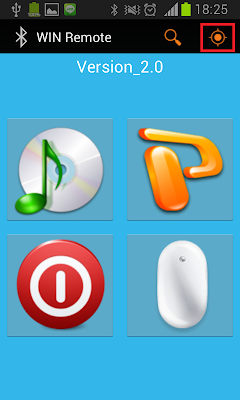
3 藍芽配對,先點選右上角案鈕,然後選擇"是"


進入控制台\硬體和音效\新增Bluetooth裝置,此時會電腦已找到您的手機(我的是GT-I9300),
然後點選按下一步


看到配對碼後一樣按下一步


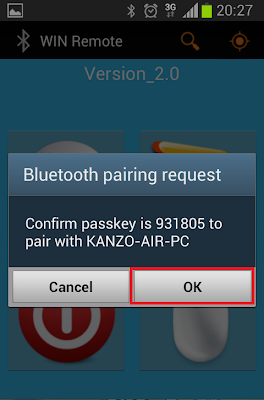
在上個步驟後,手機端會出現對畫框如下,按下確定,即完成配對設定,

 ****上述這些設定只需做一次即可****


=========================================================
如何使用


1.點擊電腦端的WINRemoteService_1.0,來開啟服務
(少數的使用者會看到WINRemoteService_1.0變成RAR, 如果是的話,請點選此檔案,及按滑鼠右鍵,然後選"開啟檔案",最後選擇"JAVA(TM) platform SE binary)


2.點選右上角的按鈕,然後點選裝置名稱(KANZO-AIR是我的電腦名稱)


3.連接成功,可開始遙控嘍


=====================================================================
下載WIN遙控器連結:
http://powerpoint-remote844843.android.informer.com/1.2/


如有任何設定或操作上的問題,請留這或寫信給我

WIN remote control

Set up environment
(If your version is 1.2, please upgrade to 2.0 or newer)

1 Install Java program, download link below
Download

2 Download WINRemoteService_1.0.rar to your computer and unzip it, there'll be 3 files there(winremote_1.0_x64, winremote_1.0_x86, WINRemoteService_1.0, first two files are libraries for 32/64bit, the last file is execute file for lunching service)
Download

3.Pair Bluetooth device between computer and your android phone.

Enter Control Panel -> Hardware and Sound -> Add a Bluetooth device, then computer will
find your android phone(GT-I9300 is my phone type), click it and press "next"

Press "Next" key to pair your phone


After last step, your phone will auto show the dialog box below, just click "OK" to finish pair.
All of these steps above only do one time.


============================================================
Start to Use

1.double Click WINRemoteService_1.0  to lunch service.
(rarely users see the WINRemoteService_1.0 becoming .rar extension file,
 please click the file with mouse right button, choose "open with", then choose "JAVA(TM) platform SE binary)

2. Click the right-top button to connect to computer.(KANZO-AIR is my computer name)
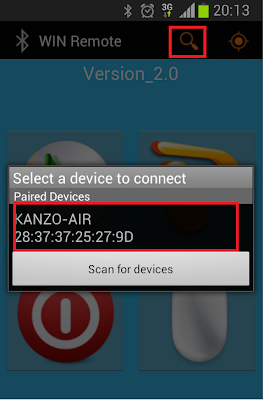

3.If connection is successful, it will show as following.


============================================================
download WIN remote control from:
http://powerpoint-remote844843.android.informer.com/1.2/


If there're any problem about setting or use, please leave message here or mail me.